Rage Clicks Explained: What They Are, Why They Matter, and How to Fix Them
By W. Jason Gilmore
TLDR: A rage click is a UX frustration signal that occurs when a user rapidly clicks the same area on a web page 3 or more times within a short time window (typically 500ms to 1 second), indicating that something is broken, unresponsive, or not behaving as expected. Rage clicks are one of the most reliable indicators of poor user experience because they capture the moment a user's patience breaks. IterOps data from early-access customers shows that pages with rage click rates above 2% of total clicks consistently correlate with above-average bounce rates and below-average conversion. Detecting and fixing rage click sources is one of the highest-ROI activities a product team can undertake.
What is a rage click?
A rage click is a specific interaction pattern where a user clicks the same element or area on a page multiple times in rapid succession. The behavior is involuntary - it emerges from frustration when something the user expects to happen does not happen.
The precise definition used by most analytics tools, including IterOps: 3 or more clicks within a 500-millisecond window on the same element or within a tight coordinate radius. This threshold distinguishes intentional rapid interactions (like double-clicking to select text) from frustration-driven clicking.
Rage clicks are not the same as dead clicks. A dead click happens when a user clicks a non-interactive element once. A rage click happens when a user repeatedly clicks something - interactive or not - because it is not responding.
Why rage clicks matter
They signal broken functionality
The most common rage click trigger is a button or link that appears functional but does not work. This could be a JavaScript error preventing a form submission, a link pointing to a 404, or an interactive element that has lost its click handler after a front-end update.
They predict user abandonment
Research from the Baymard Institute (2024) on checkout usability shows that interface friction points directly correlate with abandonment. Rage clicks are one of the clearest real-time signals of that friction. When a user rage-clicks a "Submit" button, they are seconds away from leaving.
They reveal invisible bugs
Many rage click issues never get reported through customer support channels. A user clicks a button three times, nothing happens, and they leave. There is no error logged on the server, no support ticket filed, and no crash report generated. The bug exists only in the gap between the user's expectation and the interface's behavior - exactly where rage click detection operates.
They are quantifiable
Unlike qualitative user feedback, rage clicks produce hard numbers: which elements, how often, which pages, which user segments. This makes rage click data actionable for product prioritization. A product manager can say "the pricing page subscribe button has 47 rage clicks this week" rather than "users are reporting issues with checkout."
What causes rage clicks
Unresponsive buttons
The most common cause. A user clicks a button, sees no visual feedback (no loading spinner, no state change, no navigation), and clicks again. Common root causes:
- JavaScript errors preventing the click handler from executing
- API calls that take several seconds with no loading indicator
- Buttons inside forms that require validation but show no error messages
- Double-click prevention logic that silently swallows the second click
Slow-loading interactions
When a click triggers an action that takes more than 200-300ms without visual feedback, users assume it failed. This is especially common with:
- Add-to-cart buttons on e-commerce sites
- Form submissions that hit slow API endpoints
- Navigation links that trigger client-side routing transitions
Elements that look clickable but are not
Images, cards, icons, and text styled with color or underlines create an expectation of interactivity. When users click and nothing happens, they try again - harder. This overlaps with dead click tracking, but when the user escalates from a single click to rapid repeated clicks, it crosses into rage click territory.
Broken states after updates
Front-end deploys that introduce regressions are a frequent rage click source. A button that worked yesterday stops working today because of a CSS change that moved a transparent overlay on top of it, or a JavaScript bundle error that prevents event listeners from attaching.
How to detect rage clicks
Manual observation
The least scalable approach. You can watch session recordings and look for rapid clicking patterns. This works for individual debugging but cannot cover the breadth of real user traffic.
Automated detection with IterOps
IterOps rage click detection works automatically:
- The tracking snippet monitors click timing and coordinates in the browser
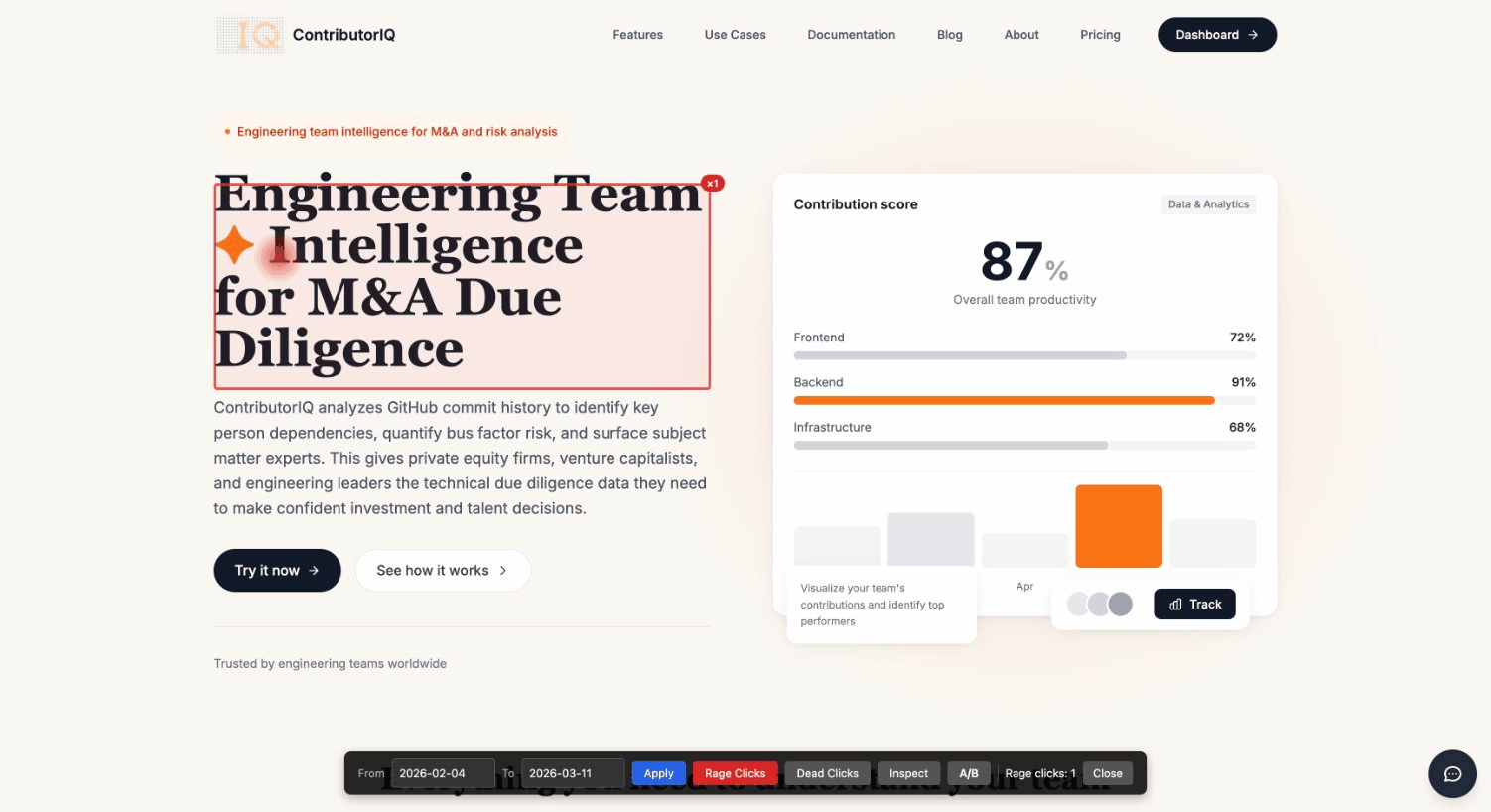
- When 3+ clicks occur within 500ms on the same element, the click is flagged as a rage click
- An HTML snapshot of the page is captured at that moment, preserving the exact DOM state the user experienced
- Rage clicks surface in the dashboard with element selectors, page URLs, frequency counts, and snapshot previews
The HTML snapshot is critical - it lets developers see exactly what the user saw, including any dynamic content, error states, or visual glitches that may have contributed to the frustration.
How to fix rage click issues
Step 1: Prioritize by frequency
Start with the elements receiving the most rage clicks. Sort your rage click dashboard by frequency and focus on the top 5 elements. A single fix on a high-frequency rage click source can improve UX for hundreds or thousands of users.
Step 2: Inspect the HTML snapshot
IterOps captures a sanitized HTML snapshot of the page at the moment of each rage click. Open the snapshot to see:
- Was the element visually present and styled as interactive?
- Was there an error message visible on the page?
- Was a loading spinner already showing (indicating the user could not tell it was processing)?
Step 3: Identify the root cause
Common fixes mapped to common causes:
| Symptom | Likely cause | Fix |
|---|---|---|
| Button receives rage clicks, no errors in console | Missing or swallowed click handler | Check event listener attachment, look for overlapping elements with higher z-index |
| Button rage-clicked after slow response | No loading feedback | Add a loading spinner or disable the button with "Processing..." text after first click |
| Non-interactive element rage-clicked | Design expectation mismatch | Either make the element interactive or restyle it to look non-clickable |
| Rage clicks only on certain browsers | Browser-specific JS error | Check error monitoring for the affected browser/version |
Step 4: Validate with an A/B test
After implementing a fix, use IterOps A/B testing to validate the improvement. Compare the rage click rate on the fixed version against the original. A successful fix should reduce rage clicks on the target element to near zero.
Rage clicks for SaaS product teams
SaaS product teams should monitor rage clicks on:
- Core workflow buttons: Submit, Save, Create, Delete - any action that drives the product's primary value
- Navigation elements: Sidebar links, tab switches, breadcrumbs
- Interactive UI components: Dropdowns, modals, toggles, accordions
- Onboarding flows: Where new users encounter the interface for the first time and expectations are most likely to mismatch reality
A practical workflow: review rage click data weekly, triage the top sources, file bugs with the HTML snapshot attached, and track resolution through the rage click rate.
Rage clicks for e-commerce
E-commerce sites should focus rage click monitoring on:
- Add-to-cart buttons: The highest-value interaction on any product page
- Product image galleries: Users expect images to be zoomable and swipeable
- Size/variant selectors: Dropdown and swatch pickers that fail silently
- Checkout form fields: Especially payment and address inputs with validation errors
- Promotional banners: Clickable-looking elements that link nowhere
A 2023 Baymard study found that 18% of US online shoppers have abandoned a purchase due to a checkout process that was too long or complicated. Rage clicks in checkout forms are a direct signal of this friction.
FAQ
What is a rage click?
A rage click is a UX frustration signal that occurs when a user rapidly clicks the same area of a web page 3 or more times within 500 milliseconds. It typically indicates that an element is broken, unresponsive, or not behaving as the user expects.
How is a rage click different from a dead click?
A dead click is a single click on a non-interactive element. A rage click is multiple rapid clicks on any element - interactive or not - driven by frustration. Dead clicks indicate a design expectation gap; rage clicks indicate active user frustration. Both are important UX signals.
What is a normal rage click rate?
Based on IterOps aggregate data, a rage click rate below 1% of total clicks is typical for well-optimized pages. Rates between 1-2% indicate specific friction points worth investigating. Rates above 2% signal significant UX issues that are likely impacting conversion.
Can rage clicks cause actual damage?
Rage clicks on properly built interfaces should not cause damage because well-designed systems are idempotent (clicking "Submit" three times should not create three orders). However, if your interface is not idempotent, rage clicks can expose that vulnerability - another reason to detect and address them.
How quickly can I start detecting rage clicks?
With IterOps, rage click detection works immediately after installing the tracking snippet. There is no separate configuration or feature flag. Every click is analyzed for rage patterns in real time, and results appear in your dashboard within seconds.